How to Reset a Windows Admin Password with Command Prompt

You can’t view or “find” the current Windows administrator password in Command Prompt or any built‑in tool. Windows stores passwords as non‑reversible hashes. What you can do is set a new password for a local account if you can sign in with any administrator—and you can reset a Microsoft account password from the sign‑in screen. This guide keeps to supported methods for Windows 10 and Windows 11.

Before you start: know your account type and limits
- Local vs Microsoft vs work/school: If the sign‑in screen shows an email address, it’s a Microsoft account—use the “I forgot my password” flow. A name without email is a local account. Work/school devices are managed; contact IT.
- Command Prompt can’t reveal passwords: Commands like
net usercan set a new password for a local account, not display the old one. - Admin rights required (inside Windows): To change another user’s local password, you must already be signed in with an administrator account.
- BitLocker and device encryption: Many modern PCs encrypt the system drive. Offline “hacks” are unreliable or blocked and can risk data access.
- Important caveat for EFS/credentials: For a local account, forcing a password reset from another admin can break access to EFS‑encrypted files and some saved credentials if no recovery key exists. Proceed only if you accept this risk.
- Legal reminder: Only reset passwords on devices you own or are authorized to service.
Change a local admin password from an elevated command prompt (when you can sign in)
Use this if you can log into Windows with any administrator account. It works on Windows 10 and Windows 11.
Step 1: open command prompt as administrator
Right‑click Start and choose “Windows Terminal (Admin)” on Windows 11, or “Command Prompt (Admin)”/“Windows PowerShell (Admin)” on Windows 10. Approve the UAC prompt.
Step 2: list local accounts
Type the following and press Enter:
net userNote the exact account name you want to change.
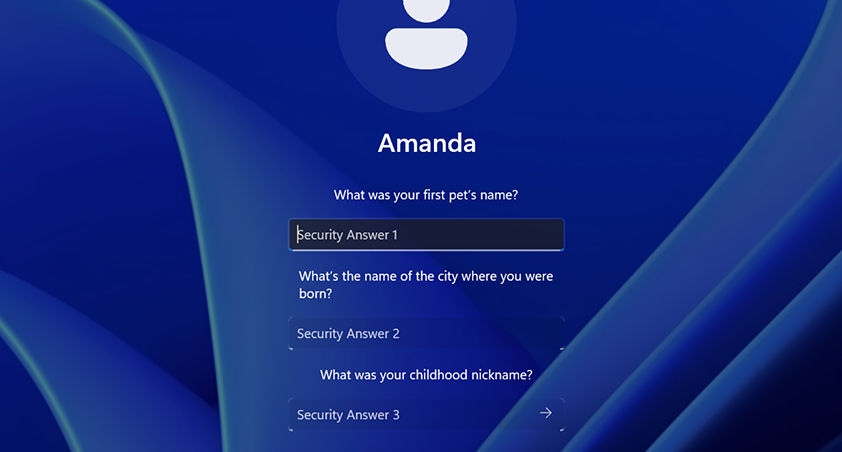
Step 3: set a new password
Use quotes if the account name contains spaces. The asterisk prompts you to type the password securely:
net user "username" *Press Enter, type the new password (it won’t show), press Enter, retype it, and press Enter again.

Alternative (visible in history, not recommended on shared PCs):
net user "username" NewStrongPasswordHereIf you see “System error 5 has occurred. Access is denied,” you didn’t run the prompt as administrator. If you see “The user name could not be found,” check the name and quotes.
Reset a Microsoft account password from the sign‑in screen
If the lock screen shows an email address, it’s a Microsoft account. Command Prompt can’t reset this offline. Use the built‑in recovery:
Step 1: start recovery
On the Windows sign‑in screen, select “I forgot my password.”
Step 2: verify your identity
Choose a recovery method (email, SMS, Authenticator app, or another configured option) and enter the code you receive.
Step 3: create a new password
Set a new password and sign in. Consider adding the Microsoft Authenticator app and up‑to‑date recovery info once you’re back in.

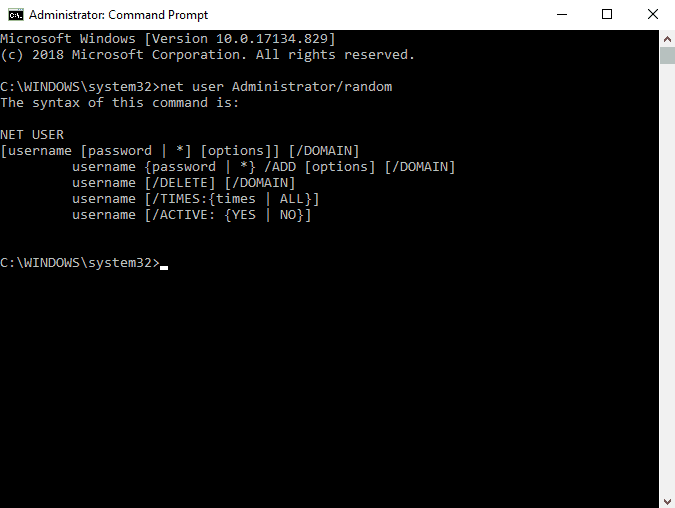
Reset a local account at the sign‑in screen (security questions)
For local accounts that have security questions set (Windows 10 version 1803 or later), you can reset right on the lock screen.
Step 1: choose reset
On the sign‑in screen, select “Reset password.”
Step 2: answer your security questions
Enter the answers you configured for that local account.
Step 3: set a new password
Create a new password and sign in.
If none of the above works
- Use another administrator account: Sign in with any other admin and reset the user’s password via Settings or the
net usersteps above. - Password reset disk (local accounts): If you created one previously, plug it in at the sign‑in screen and follow the Reset Password wizard.
- Reset this PC: If there’s no viable recovery, the supported option is to reset Windows. Choose “Keep my files” to retain personal files; apps and settings are removed. Backups are still advised.
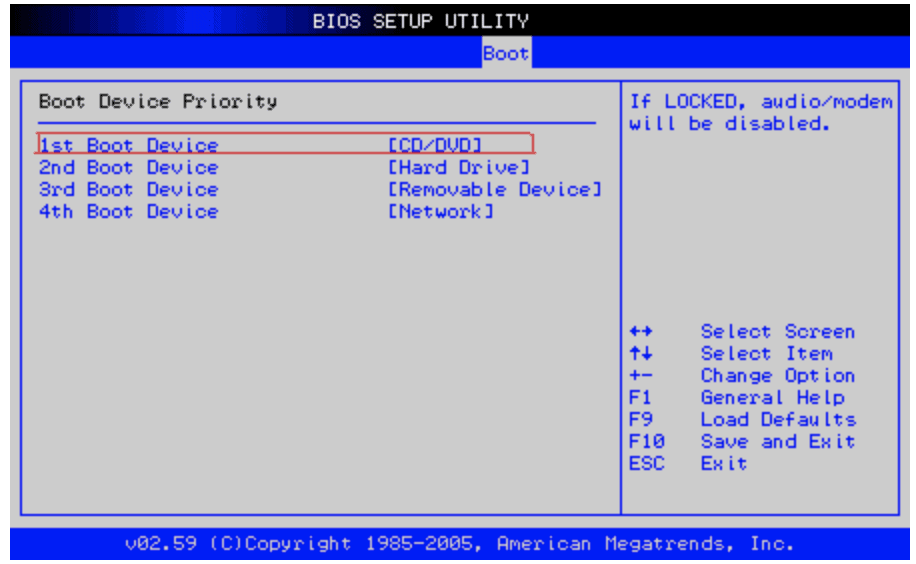
- Reinstall from installation media: As a last resort, reinstall Windows from a USB you create on another PC. You may need to change boot order in firmware (BIOS/UEFI).
Why we don’t recommend utilman.exe tricks or password‑cracking tools
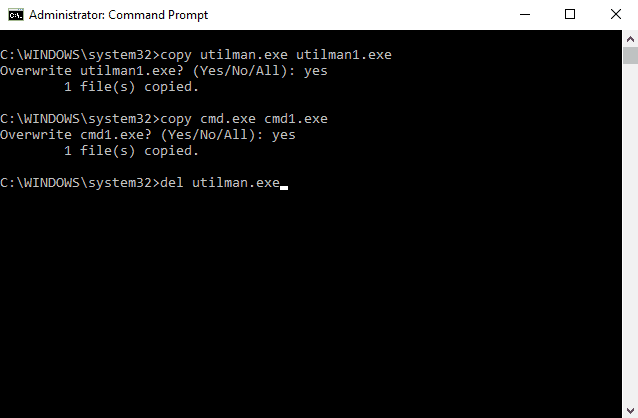
Older tutorials suggested replacing utilman.exe (Ease of Access) with cmd.exe to open a system prompt at the sign‑in screen. Modern Windows builds repair or block these changes, and BitLocker/device encryption on many PCs prevents offline tampering. These workarounds can also break updates or reduce security. We don’t provide steps for them.
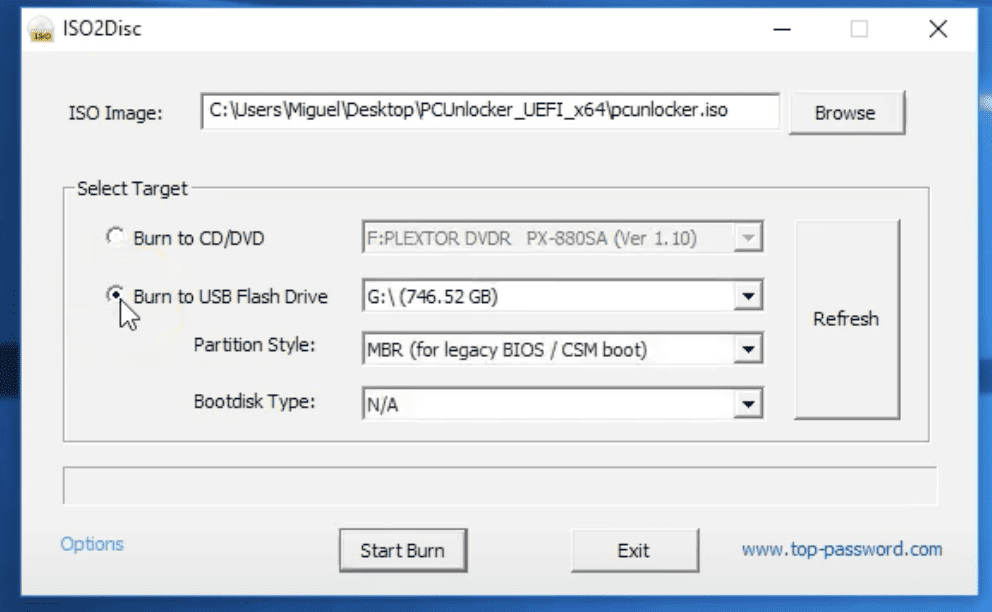
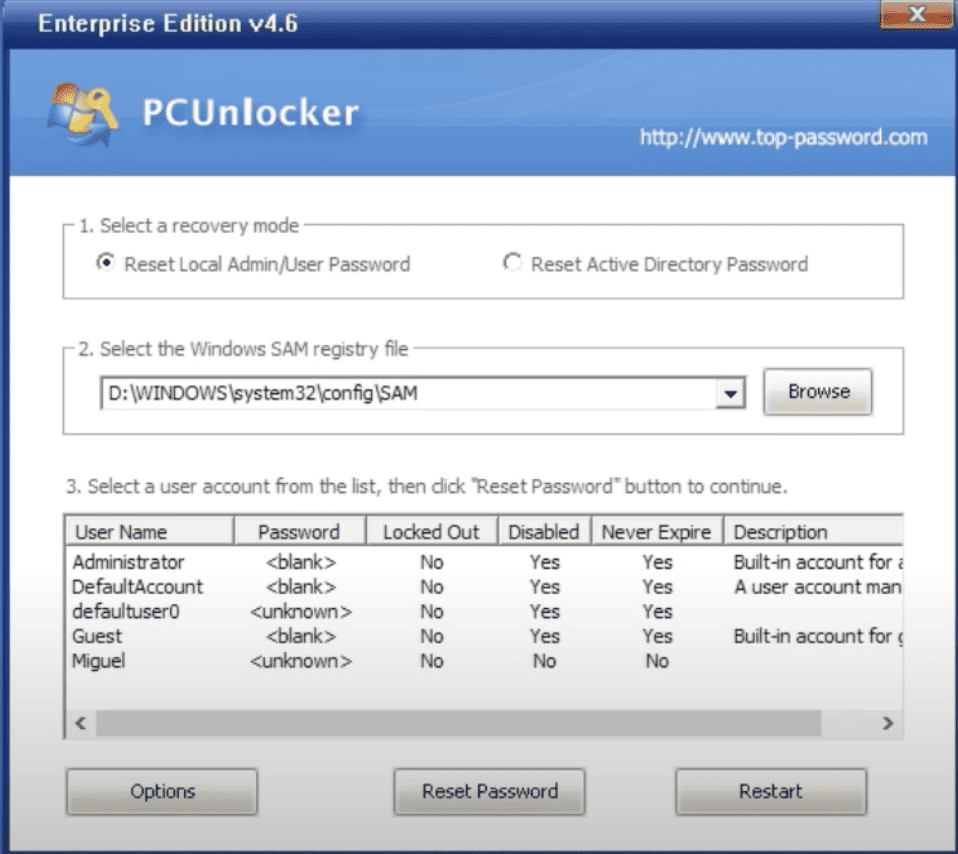
Third‑party “password recovery” utilities typically modify local account data offline. They don’t apply to Microsoft or work/school accounts, can conflict with security features, and may corrupt profiles. Use only if you fully understand the risks and have verified backups.
In short: use the supported flows first. They’re more reliable on modern hardware and far safer for your data.
Quick reference: supported ways to get back in
| Scenario | Works for | What to do | Where |
|---|---|---|---|
| You can sign in with another admin | Local accounts | Open elevated CMD and run net user "username" * to set a new password |
Within Windows |
| Microsoft account on the lock screen | Microsoft accounts | Select “I forgot my password,” verify, and set a new password | Sign‑in screen |
| Local account with security questions set | Local accounts (Win10 1803+) | Click “Reset password,” answer questions, set a new password | Sign‑in screen |
| No admin access; no questions; not a Microsoft account | Local accounts | Use a password reset disk (if available) or “Reset this PC” | Recovery options |
| Work or school device | Managed accounts | Contact your IT admin for a compliant reset | IT support |
Software worth considering
- Microsoft Authenticator — fast verification for Microsoft account recovery and MFA.
- Bitwarden — cross‑platform password manager to prevent future lockouts.
- KeePass — local, offline password vault under your control.
- Rufus — create Windows installation USB for repair or reinstall.
FAQ
Can command prompt show me the current admin password?
No. Windows provides no command to reveal an account’s existing password. You can only change or reset it.
Will using net user make me lose files?
Changing a local account password from another admin can break access to EFS‑encrypted files and some saved credentials if you don’t have recovery keys. Normal documents on unencrypted folders remain.
Can command prompt reset a Microsoft account password?
No. Use the “I forgot my password” link on the sign‑in screen and complete verification.
What if i only use a pin with Windows hello?
Your account still has a password behind the scenes. If you forgot it, use Microsoft account recovery (for Microsoft accounts) or reset the local account password with admin access.
I can’t run command prompt as admin. what else can i try?
Use another administrator account if available, a previously created password reset disk for a local account, or the “Reset this PC” recovery option.
Are old utilman.exe hacks safe to try?
No. They’re blocked or unreliable on modern Windows and can create security or update issues. Stick to supported recovery methods.
