How to Make a Screenshot into a Link
You don’t have to attach large image files just to show something on your screen. The quickest way is to host the screenshot somewhere and share a link. Below are reliable options that work on Windows, macOS, iPhone, Android and the web—plus privacy tips and a short comparison table to help you pick the right method.
At a high level, you have three choices:
- Upload the screenshot to cloud storage (Google Drive, iCloud Drive, OneDrive or Dropbox) and share a view link.
- Use an image host (e.g., general-purpose screenshot sites) that instantly returns a public URL.
- Use a screenshot tool that can capture, annotate and auto-upload, then copy the generated link.
Each option is easy once you’ve done it once; choose based on whether you need privacy controls, speed, or extras like annotations.
Quick comparison
| Method | Best for | Privacy control | How fast? | Typical steps |
|---|---|---|---|---|
| Cloud storage link | Work/school sharing, permission control | Strong (viewer/restricted, optional expiry on some tiers) | Fast once set up | Upload screenshot → Share → Copy link |
| Image host | Quick public share, forums | Usually public/unlisted | Very fast | Open site → Upload/drag-drop → Copy URL |
| Screenshot app with auto‑upload | Frequent captures, annotations | Varies by service | Fastest (one shortcut) | Capture → App uploads → Link auto-copied |
Method 1: use cloud storage to get a shareable link
This is the most dependable approach for teams and anyone who needs to control who can view the image. The exact buttons vary by service, but the flow is the same everywhere.
- Save your screenshot to a folder that syncs with your cloud (Google Drive, iCloud Drive, OneDrive or Dropbox).
- Right‑click or long‑press the file and choose Share or Get link.
- Set permission: Viewer-only is usually safest. If you need public access, switch to Anyone with the link.
- Copy the link and paste it wherever you want to share it.
If you’re on a phone, use the cloud app’s Share menu on the image and choose Copy link.
Tip: if your recipient can’t open the link, check that the permission isn’t set to “Restricted” (only specific people). For public posts, prefer “Anyone with the link – Viewer.”
Method 2: upload to an image host for an instant public URL
When speed matters more than tight permission control, image hosts are the fastest way to turn a screenshot into a link. Most let you drag and drop, then immediately copy a URL you can paste into chat, email, or forums. Many also support simple edits like crop or blur.
- Open your preferred image host in a browser.
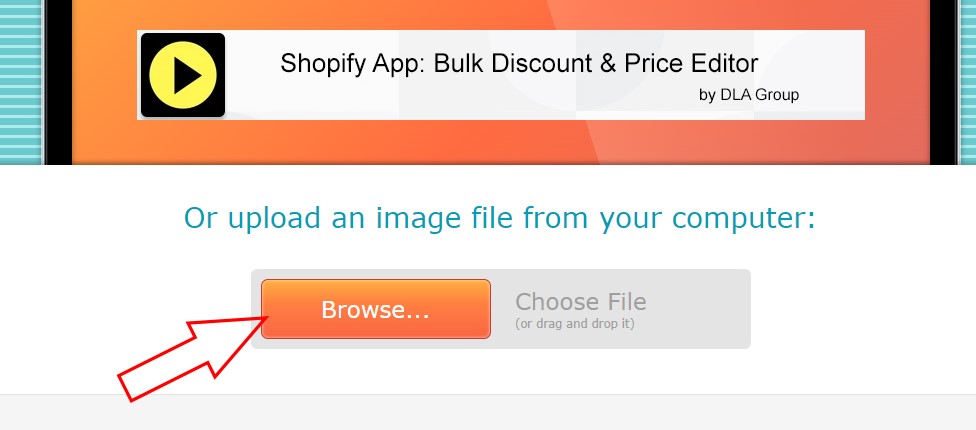
- Drag your screenshot onto the page or use the upload button.
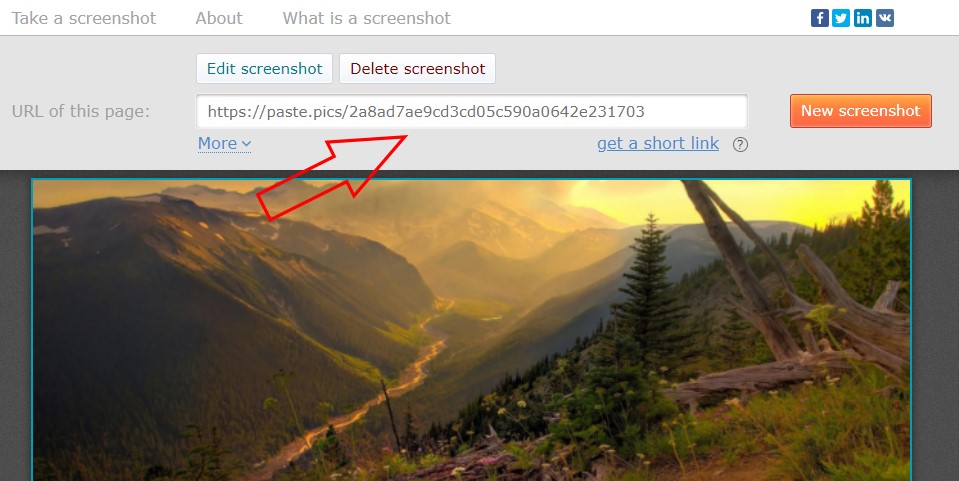
- After upload, copy the provided URL. Some hosts offer both a direct image URL and a page URL; the page link previews better in chat apps.
Remember: public hosts are usually unlisted, not truly private. Don’t upload sensitive content.
Method 3: use a screenshot tool that auto‑uploads and gives you a link
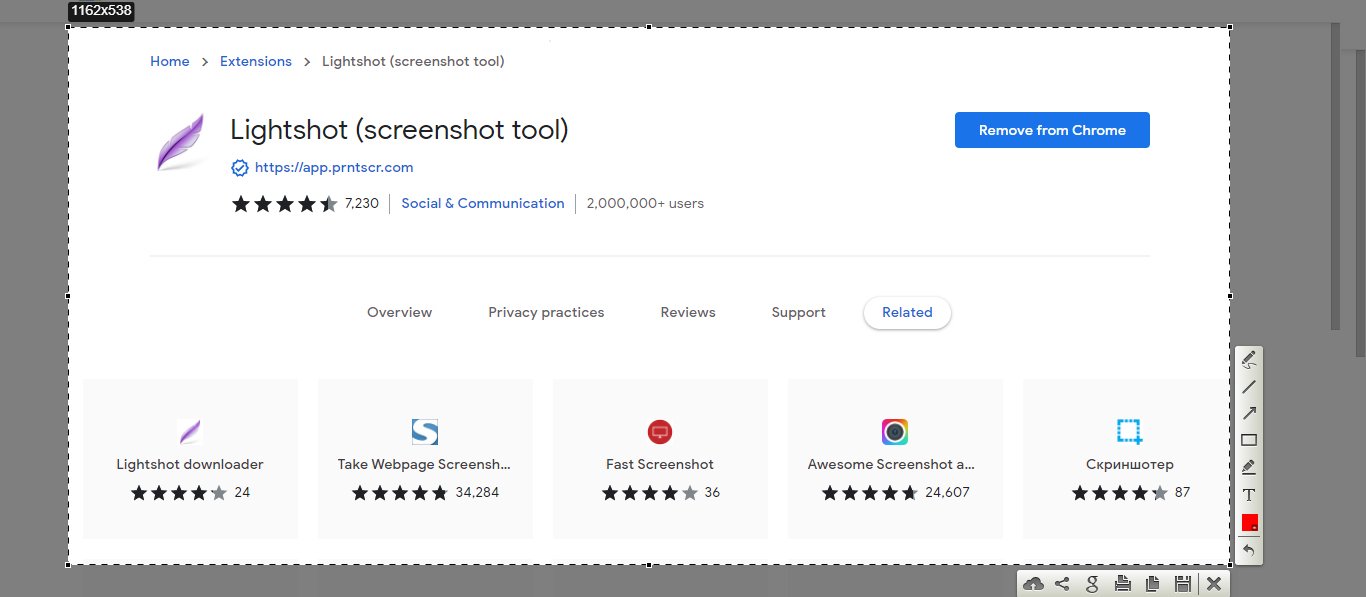
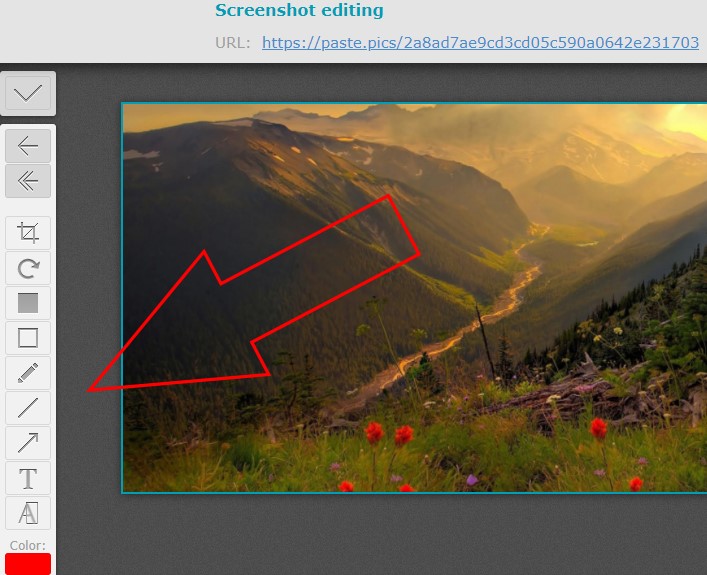
If you share screenshots frequently, dedicated tools can capture, annotate and upload in one step. After capture, the app copies a shareable link to your clipboard automatically.
- Set a keyboard shortcut for capture (e.g., full screen, window or region).
- Enable auto‑upload to the tool’s cloud or to your own storage.
- Choose default privacy (unlisted/public or restricted, depending on the service).
- Optionally enable quick annotation (arrows, text, blur sensitive info) before upload.
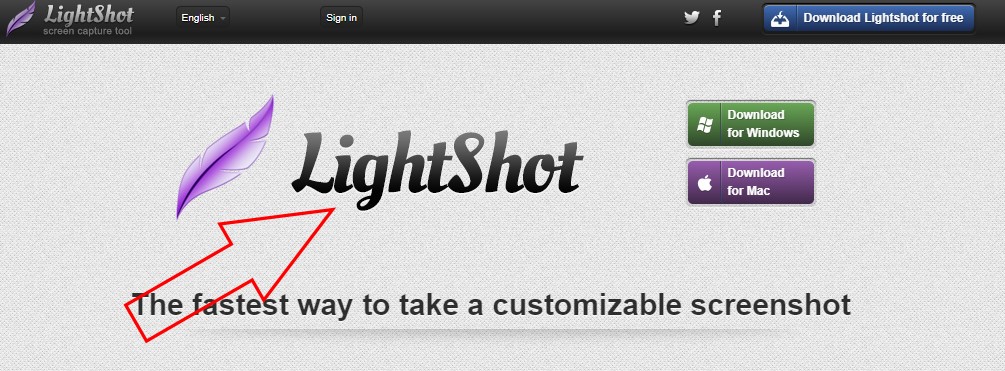
Many people like lightweight tools that work on Windows and macOS and also offer a simple browser extension for fast web captures.
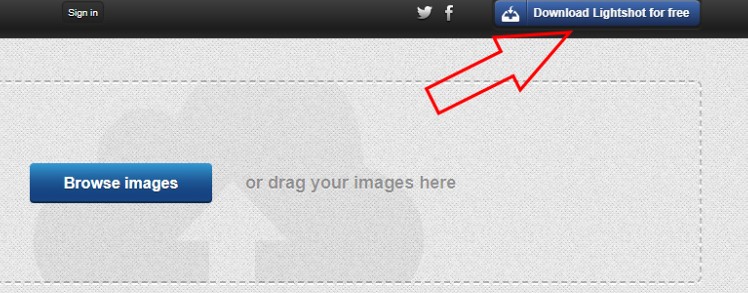
Browser extensions are handy when you only need to capture the visible part of a page or a full-page scroll without opening a separate app.

Spend a minute in settings so captures behave the way you expect—file type, annotation shortcuts, and whether the link copies automatically after each shot.
Method 4: make a clickable image link in email or documents
Sometimes you want the screenshot itself to be clickable (for example, a thumbnail that opens a larger version or a page).
- First, host the screenshot using any method above and copy the URL.
- In your email or document editor, insert the screenshot image.
- Select the image and choose Insert link (or Hyperlink), then paste the URL.
- Send or publish. Clicking the image now opens your link.
Privacy, reliability and file-size tips
- Set permissions intentionally. “Anyone with the link” is convenient; “Restricted” is safer for work or personal data.
- Avoid sensitive content on public image hosts. Even “unlisted” links can spread if shared.
- Prefer PNG for crisp UI captures; use JPEG if you need smaller files for photos or gradients.
- For long chat threads, paste the link instead of the whole image to keep conversations lightweight.
- If a link must work long-term (e.g., documentation), store the image in cloud storage you control, not a random host that could change policies.
Software worth considering
- Lightshot — quick captures with simple annotations and link sharing.
- ShareX — advanced Windows captures, workflows and uploads.
- Snagit — robust editing and callouts for tutorials and documentation.
- CloudApp — capture, annotate and auto-upload with short links.
- Droplr — shareable links with team-focused organization features.
FAQ
Can i create a link without uploading the screenshot anywhere?
No. A link must point to a location that’s accessible to others, which means the image has to be hosted—in your cloud storage, an image host, or a screenshot service.
What’s the difference between a direct image URL and a page URL?
A direct image URL ends with an image extension and loads only the image; a page URL loads a web page that contains the image. Many chat apps preview page URLs more consistently.
How do i keep a screenshot link private?
Use cloud storage and share to specific people, or keep it restricted and invite collaborators by email. Avoid public image hosts for confidential material.
Why can’t someone open my link?
Most often, permissions are set to “Restricted.” Switch to “Anyone with the link – Viewer” for broad access, or add their account explicitly if you need tighter control.
Will my link expire?
Some services allow link expiration or revocation; others keep links active until you delete the file. If permanence matters, choose a service you control and avoid temporary hosts.
How do i make the screenshot itself clickable in an email?
Insert the image in your email, select it, then add a hyperlink to your hosted URL. Test by sending the email to yourself first.
You may also like: Best Chrome extension for screen recording
